A Oracle DBA's BLOG

Welcome to my ORACLE DBA blog. You will be Amazing!!!

Saturday, April 7, 2012

TNS Listener Configuration for Oracle

Today I will mention Oracle Listener and prepare for database.
Listener is provide connection between databases at different location.

Generally standard Listener port is 1521.
Scenario:
When Oracle installed Listener_name is Listener and port is 1521. If more databases are located on the same machine then using different listener and port more beneficial.
At this Scenario I’ll use Listener_name: My_Listener and port:1525

    1.   Preparation Database
At first we are going to look default configuration status when database is up.  For this we must create
init.ora from spfile (server parameter file or binary parameter
file)

SQL> create pfile='/tmp/test_pfile.ora' from spfile;

Open the “test_pfile” and save the following command
 *.local_listener='MY_LISTENER'
SHUTDOWN IMMEDIATE the database.

We have to make this test_pfile as Oracle Spfile in order to Up database.

SQL> create spfile from pfile='/tmp/test_pfile.ora';


   2.   Preparation LISTENER.ORA

Now we have to change listener.ora file.
When you open Listener.ora you will see the default setting change like following
MY_LISTENER =
(DESCRIPTION_LIST =
(DESCRIPTION =
(ADDRESS = (PROTOCOL = IPC)(KEY = EXTPROC1))
(ADDRESS = (PROTOCOL = TCP)(HOST = machine_name)(PORT = 1525))
)
)

Here write the machine_name and change port number..

After the setting Listener would be changed like following.:

Thursday, April 5, 2012

Oracle Linux useful Command

Today i will show how to use Linux commands And Useful for Oracle DBA.

man
To show command knowledge

man(manual):

 To show contents
ls(list):
 To show hiding contents
ls -a :
 To show one under the other
ls -l :
 To show size and more information's
ls -lh :
 To show last update
ls -lrt : 
Cd
 To go other folder
cd :

/ : Linux above folder
To go above folder
Cd .. :

pwd
 To show own folder
pwd :

To create folder

mkdir

 To delete folder
rm

rm :
 to delete all
rm -R :


rmdir
 To delete empty folder
rmdir :

TO COPY FOLDER 
cp
 To move Folder 
mv
  
To show file or text 
cat | more
  
To Gzip Folder 
gzip
  
TO GUNZIP FOLDER 
gunzip

 To find folder
find

TO GIVE ALIAS 
Alias

 alias Nick_name=”<command >”  


mounting disk:

1- create a folder where to mounted.
mkdir /media/newdisk
mkdir /DATA


if we want to mount with FAT32:
mount -t vfat -o umask=ooo /dev/hdb1 /media/newdisk

if we want to mount with NTFS
mount -t ntfs -o umask=0222 /dev/hdb1 /media/newdisk

if we want to mount  CDROM:
mount -t iso_name -r /dev/cdrom /media/cdrom


if we want to mount with  OCFS2:
mount -t ocfs2 -o noatime,_netdev,datavolume,nointr /dev/emcpowera1 /DATA


if we want to mount with  EXT3:
mount -t ext3 /dev/sdb1 /software


unmounting disk:

umount -l /dev/sdb1
umount /DATA


Partitioning

fdisk /dev/sdb


Formatting


if we want to format with EXT3:
mkfs -t ext3 /dev/sdb1
if we want to format with  OCFS2:
mkfs.ocfs2 -b 4K -C 128K -N 5 -L /DATA /dev/emcpowera1

FILE SYSTEM CHECK

fsck.ocfs2 -n /dev/sdf2
fsck.ocfs2 -y /dev/sdf2 –>repair
List drives

df -h


tmpfs increase

mount -t tmpfs shmfs -o size=3g /dev/shm


Getting user id

id username
id oracle


Set user folder

chown -R oracle:dba /oracle

Change folder permission


chmod 775 file_name


Checking installed “rpm” packages

rpm -qa | grep “package name”


Rpm download 

rpm -ivh package

Rpm update


rpm -Uvh package


Rpm Delete

rpm -e package


Checking Oracle installing requires packages 
—————————————————————————————————————-

rpm -q binutils compat-db compat-libstdc++-33 libgcc glibc glibc-devel glibc-headers gcc gcc-c++ libgcc libstdc++ cpp make libaio ksh elfutils-libelf make sysstat libaio libaio-devel setarch libXp unixODBC –qf “%{NAME}-%{VERSION}-%{RELEASE} (%{ARCH})\n”|sort

Date of rpm

rpm -qa –last | more

CPIO extract


cat cpio_file | cpio -idmv

Create MD5 In order To copy or move validate folder


md5sum file > file.md5


Checking moved MD5 

md5sum -c file.md5

Folder transfer between servers


scp 192.168.192.168:oracle/veysi.pw /

 scp /oracle/full.dmp ora11g@192.168.192.166:/export #copy folder

Search folder

grep -ins 192.168.192.168(Text) -A2 -B1 list1.log


Get Process value

ps -ef |grep veysi|wc


Change Date

date -s “21 MAR 2010 02:04:00″


SEMAPHORE

ipcs -s
ipcrm

Trace OS process


strace -p pid


List Tar zip 

tar -tf java_patch.tar


Add a file or folder to Tar zip 

tar -rf java_patch.tar jre


Create Tar zip 

tar -cf java_patch.tar jdk


Change user ID 

usermod -u UID user


Delete folder after killed process 

echo “”>veysi_ora_7001.trc

Give easy path to folder


ln -s path kısayol_adı


Show status SELinux 

sestatus


To show version of download rmp package

echo ocfs2-`uname -r`


i/o static list

iostat 3


checking RAC node date: 

ssh rac1 date; ssh rac2 date; date


without using root password to get information

/etc/SUDOERS
ora11g localhost=NOPASSWD:/bin/mount,/bin/umount
ora11g talipdb=NOPASSWD:/bin/mount,/bin/umount


Last log in 

last | more


Send file to Via E-mail

mail -s “file_name” muh.veysi.47@hotmail.com < sqlnet.log


Finding word in folder

grep -ins word *

To kill more process using process_name


ps -ef |grep “process_name” |awk ‘{print ” kill -9 ” $2}’>/tmp/kill.sh


To watch process_name every 3 second

watch -n 2 “ps -ef | grep process_name | grep -v ps”


Open Log file
tail -f /var/log/messages


Thursday, March 29, 2012

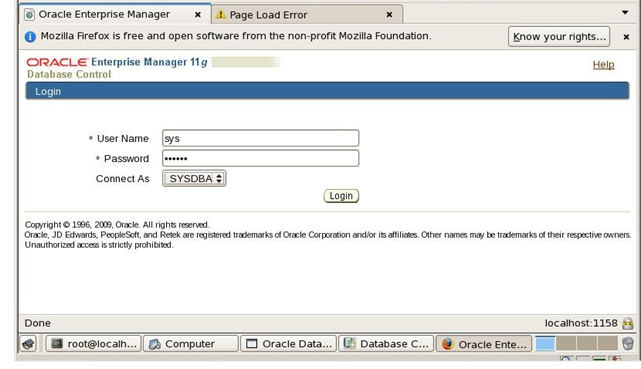
Oracle Enterprise Manager (OEM) 11g Start/Stop

Starting and Stopping the Oracle Enterprise Manager (OEM)

 Oracle Enterprise Management is Web-Based tool to manage Oracle Database.OEM using for perform administrative task abd view performance statistics. 


How to use Database Control
a) ORACLE_HOME/bin/emctl start dbconsole  [To start DB Control]
b) ORACLE_HOME/bin/emctl status dbconsole [To check status of DB Control]
c) ORACLE_HOME/bin/emctl stop dbconsole   [To stop DB Control]

If you didnt install OEM through installation Oracle Database 11g Then You need downloand OEL and installa it by your self.
So,i will write a article about that next days.
In this article i will take part of starting and stoping options of OEM.

Firstly we have to go OEM directory $ORACLE_HOME/bin/ 

Status OEM
[oracle@orcl bin]$ emctl status dbconsole
Oracle Enterprise Manager 11g Database Control Release 11.2.0.1.0
Copyright (c) 1996, 2009 Oracle Corporation.  All rights reserved.
https://orcl.localdomain:1158/em/console/aboutApplication
Oracle Enterprise Manager 11g is not running.
------------------------------------------------------------------
Logs are generated in directory /u01/app/oracle/product/11.2.0/db_1/orcl.localdomain_orcl/sysman/log
Starting OEM
emctl start dbconsole;
Oracle Enterprise Manager 11g Database Control Release 11.2.0.1.0
Copyright (c) 1996, 2009 Oracle Corporation.  All rights reserved.
https://orcl.localdomain:1158/em/console/aboutApplication
Starting Oracle Enterprise Manager 11g Database Control............ started.
------------------------------------------------------------------
Logs are generated in directory /u01/app/oracle/product/11.2.0/db_1/orcl.localdomain_orcl/sysman/log
Stoping OEM
emctl stop dbconsole
Oracle Enterprise Manager 11g Database Control Release 11.2.0.1.0
Copyright (c) 1996, 2009 Oracle Corporation.  All rights reserved.
https://orcl.localdomain:1158/em/console/aboutApplication
Stopping Oracle Enterprise Manager 11g Database Control ...
 ...  Stopped.


Thursday, March 8, 2012

Installing RLWRAP command on linux

In this article we shell see how to install Rlwrap(read line wrapper) which very useful program on Linux and use it.
So, all you need download Rlwrap.tar.gz from this site and complete it.
1) Download Rlwrap/

Or if you are on ubuntu OS use: sudo apt-get install rlwrap

2)
[oracle@orcl tmp]$   tar -xvf rlwrap-0.37.tar
rlwrap-0.37/
rlwrap-0.37/completions/
rlwrap-0.37/completions/testclient
rlwrap-0.37/completions/coqtop
rlwrap-0.37/doc/
rlwrap-0.37/doc/rlwrap.man.in
rlwrap-0.37/doc/Makefile.am

3) Now trun to root user and configure Rlwrap
[oracle@orcl rlwrap-0.37]$./configure
checking build system type... x86_64-unknown-linux-gnu
checking host system type... x86_64-unknown-linux-gnu
checking for a BSD-compatible install... /usr/bin/install -c
checking whether build environment is sane... yes
checking for a thread-safe mkdir -p... /bin/mkdir -p
checking for gawk... gawk
checking whether make sets $(MAKE)... yes
checking whether make sets $(MAKE)... (cached) yes
checking whether build environment is sane... yes.................................................................................................................................................................................

Now do:
    make (or gmake)  to build rlwrap
    make check       for instructions how to test it
    make install     to install it
4) Now we have to use make
# make
# make check
# make install
5) this step i'll set bash_profile in order to use rlwrap
[oracle@orcl ]$ vi .bash_profile

alias sql='rlwrap sqlplus'
alias dgmgrl='rlwrap dgmgrl'
alias rman='rlwrap rman'
alias lsnrctl='rlwrap lsnrctl'
alias asmcmd='rlwrap asmcmd'
alias adrci='rlwrap adrci'
alias impdp='rlwrap impdp'
alias expdp='rlwrap expdp'
And set it [oracle@orcl ]$. .bash_profile

Now you can use the alias for easy way :) 

I think, DBAs Love that rlwrap :)


Thursday, March 1, 2012

Startup And Shutdown Oracle Database Options

STARTUP ve SHUTDOWN

Before making Oracle Database available for any valid user, you must start up a database,
So startup have 3 mode 

1.NoMount mode,
2.Mount mode,
3.Open mode

Startup
When startup command is issued. Oracle looks for the parameter file in following order. SGA+BACKGROUND PROCESS Spifie<SID>.ora, init<SID>.ora

If we want to know the database on which instance. 
 " select open_mode from v$database " Using this command.

[oracle@orcl ~]$ su - oracle

[oracle@orcl ~]$ env | grep ORA
ORACLE_SID=ORCL
ORACLE_HOME=/u01/app/oracle/product/11.2.0/db_1
You can connect using either “/ as sysdba” or an oracle account that has DBA privilege.


[oracle@orcl ~]$ sqlplus '/ as sysdba'
SQL*Plus: Release 11.2.0.1.0 - Production on Sun Feb 20 10:40:28 2012
Copyright (c) 1982, 2009, Oracle.  All Rights Reserved.
Connected to an idle instance.
SQL>


SQL>startup; --> At first the database will go on "NOMOUNT" mode.
Then will go 
            MOUNT and at the final mode will be OPEN


NOMOUNT MODE: Oracle is reading paramater files (INITORA, SPFILE). 

It allocating memory(SGA), Starting backgraound processes. 

We can use "STARTUP QUIET"command in order to pass this option.
 SQL> startup nomount;
ORACLE instance started.

Total System Global Area  276197376 bytes
Fixed Size                  1335980 bytes
Variable Size             171969876 bytes
Database Buffers           96468992 bytes
Redo Buffers                6422528 bytes


MOUNT MODE: .The most important this is Oracle is reading Control files whichs instance mounted. Oracle check datafile and Log files. If there were any corruptions Oracle wont be open.

 ALTER DATABASE MOUNT; This command can be used when database is in nomount.


Database altered.
SQL> ALTER DATABASE OPEN; This comman can be used when database is in mounted. it will check datafiles and redolog files.


Database altered.
1) STARTUP [MOUNT/NOMOUNT/OPEN] RESTRICT; --> This comman is using for priviled User except this user others cant be connected in this mode How ever if any user have RESTRICTED SESSION role then its not up on that user.
SQL> ALTER SYSTEM  ENABLE RESTRICTED SESSION; For valid Restrict mode
SQL> ALTER SYSTEM  DISABLE RESTRICTED SESSION; For unvalid Restrict mode

select logins from v$instance; This select will show us the instance mode.


SQL> ALTER SYSTEM QUIESCE RESTRICTED; This command will wait until the active user 
finish trunsactions.
SQL> ALTER SYSTEM UNQUIESCE; 
SQL> select active_state from v$instance;

2) STARTUP [MOUNT/NOMOUNT/OPEN] FORCE; --> Database will be "SHUTDOWN ABORT" and then Opened again.
3) STARTUP [MOUNT/NOMOUNT/OPEN] EXCLUSIVE; -->This command will functionally identical to Above.


SHUTDOWN


1) SHUTDOWN [NORMAL]; --> The database waits for all users to disconnect, 
Oracle waits for all users to exit their sessions before shutting down the database
Oracle closes the data files and terminates the background processes. Oracle’s SGA is deallocated.
SQL> shutdown
Database closed.
Database dismounted.
ORACLE instance shut down.
SQL>
2) SHUTDOWN IMMEDIATE; --> Oracle immediately disconnects all users. Oracle terminates all currently executing transactions.Oracle terminates the background processes and deallocates memory. No instance recovery is required on startup.
SQL> shutdown immediate;
Database closed.
Database dismounted.
ORACLE instance shut down.
SQL>
3) SHUTDOWN ABORT; --> Oracle doesn’t roll back the terminated transactions. Oracle doesn’t write the redo log buffers and data buffers to disk.This doesn’t wait for anything. 

SQL> shutdown abort
ORACLE instance shut down.
SQL>


Sunday, February 12, 2012

Oracle Database 11g Release 2 Installation On Oracle Linux 5

After my last 2 article (Installing VM and Installing OEL 5 ) In this article i will Install Oracle Database 11gR2 last versiyon. Also we need download  Oracle Database 11gR2 Click Here and set prerequisite before starting installation. 
So let's begin. 


The first step

Set your preferd host 

$ vi /etc/hosts
127.0.0.1       localhost.localdomain  localhost
192.168.192.168   orcl.localdomain  orcl

Set the following  for some important parameter, Make sure that shmmax is more than shmall.

$ vi /etc/sysctl.conf
fs.aio-max-nr = 1048576
fs.file-max = 6815744
kernel.shmall = 2097152
kernel.shmmax = 536870912
kernel.shmmni = 4096
# semaphores: semmsl, semmns, semopm, semmni
kernel.sem = 250 32000 100 128
net.ipv4.ip_local_port_range = 9000 65500
net.core.rmem_default=262144
net.core.rmem_max=4194304
net.core.wmem_default=262144
net.core.wmem_max=1048586
 After this setting you have to reboot the OS but if you run the following command then you wouldnt need to reboot.

$ /sbin/sysctl –p

Now set the oracle user's limit (the user of OS)  

$ vi /etc/security/limits.conf
oracle              soft    nproc   2047
oracle              hard    nproc   16384
oracle              soft    nofile  1024
oracle              hard    nofile  65536


Change /etc/pam.d/login file and add the followingn line:

$vi /etc/pam.d/login

session required pam_limits.so

During installation of OEL i do disabled  SELINUX but as i said there you could disabled by the following command.

$ vi /etc/selinux/config
SELINUX=disabled

Oracle needs some OS packages so mount DVD and install all of them.
cd /media/RHEL_5.5\ x86_64\ DVD/Server/
rpm -Uvh binutils-2*x86_64*
rpm -Uvh glibc-2*x86_64* nss-softokn-freebl-3*x86_64*
rpm -Uvh glibc-2*i686* nss-softokn-freebl-3*i686*
rpm -Uvh compat-libstdc++-33*x86_64*
rpm -Uvh glibc-common-2*x86_64*
rpm -Uvh glibc-devel-2*x86_64*
rpm -Uvh glibc-devel-2*i686*
rpm -Uvh glibc-headers-2*x86_64*
rpm -Uvh elfutils-libelf-0*x86_64*
rpm -Uvh elfutils-libelf-devel-0*x86_64*
rpm -Uvh gcc-4*x86_64*
rpm -Uvh gcc-c++-4*x86_64*
rpm -Uvh ksh-*x86_64*
rpm -Uvh libaio-0*x86_64*
rpm -Uvh libaio-devel-0*x86_64*
rpm -Uvh libaio-0*i686*
rpm -Uvh libaio-devel-0*i686*
rpm -Uvh libgcc-4*x86_64*
rpm -Uvh libgcc-4*i686*
rpm -Uvh libstdc++-4*x86_64*
rpm -Uvh libstdc++-4*i686*
rpm -Uvh libstdc++-devel-4*x86_64*
rpm -Uvh make-3.81*x86_64*
rpm -Uvh numactl-devel-2*x86_64*
rpm -Uvh sysstat-9*x86_64*
rpm -Uvh compat-libstdc++-33*i686*
rpm -Uvh compat-libcap*

Now we have to add Group including user for our database.

groupadd oinstall
groupadd dba
groupadd oper
groupadd asmadmin
 
useradd -g oinstall -G dba,oper,asmadmin oracle
passwd oracle
 And Create folder which is Software will be installed on, and give permissions.
The folder permission is very important other wise you will get error during installation.
mkdir -p /u01/app/oracle/product/11.2.0/db_1
chown -R oracle:oinstall /u01
chmod -R 775 /u01

So User is created and groupadded now log in with Oracle user and Set path installation in bash_profile


$ vi .bash_profile
# Oracle Settings
TMP=/tmp; export TMP
TMPDIR=$TMP; export TMPDIR

ORACLE_HOSTNAME=orcl.localdomain; export ORACLE_HOSTNAME
ORACLE_UNQNAME=ORCL; export ORACLE_UNQNAME
ORACLE_BASE=/u01/app/oracle; export ORACLE_BASE
ORACLE_HOME=$ORACLE_BASE/product/11.2.0/db_1; export ORACLE_HOME
ORACLE_SID=ORCL; export ORACLE_SID
PATH=/usr/sbin:$PATH; export PATH
PATH=$ORACLE_HOME/bin:$PATH; export PATH

LD_LIBRARY_PATH=$ORACLE_HOME/lib:/lib:/usr/lib; export LD_LIBRARY_PATH
CLASSPATH=$ORACLE_HOME/jlib:$ORACLE_HOME/rdbms/jlib; export CLASSPATH

$. .bash_profile   And run this command to be setted


 Now copy downloaded oracle installation files to the /tmp directory


After copied go to Tmp folder and "unzip" it.


Now its unziped go to /tmp/database/ and 

$ ./runInstaller


We dont need to get support from Oracle that's why i ignored it but if you want to connect and need any support from Oracle enter your available E-mail address.


So click yes for now


At this step we see tree installation options so i wanna create with a configuring database, because i would like to show you how to auto create a database after installation.


 Its easy to install on Desktop class Let's Install on Server class.


 We dont need RAC already so choose Single option and click Next


 I prefer to configure Advanced Install. Its up to you select one and click next


 Choose your Language

 Select Enterprise Edtion and Click Next


 Here your Oracle_Base location and Software Location, You can choose install different location but make sure that its same path in Bash_profile.


Oracle always give you a recomended name and SID however you can change it but again check bash_profile. 

 Choose Auto Memory Managment or if you would like to Allocate by yourself then remove the bird on Enable AMM :) 

You can create here with Grid control choosing first option, But i dont need now Select second
option and click next.


 And at this step asking you Disk Management You can Use ASM Disk, Actually Oracle Recommed us to use ASM Disk but here first i want to use manually file system.


We dont need any auto backup here we will do it manually by RMAN :)


  Now, 4 important users of oracle password have to be set, Oracle recommend us to using a strong password. I'll give all of them same password thats why i chose the second option and i wrote a special password


 Oracle use Group Click Next


 Now its checking for packages


 So we dont need to install any package. Now there is some physical memory warning however put a bird on "Ignore all" :) and Click Next 


 Already we are going to finish, here the response file, what we have done  in   Click finish


 Now its creating Database file. it will take some minutes.

So You finished Open a Terminal and run Scripts in order to set location.
Then click OK.
You are successfully done. And you can see the link of Enterprise Manager.

Here we go,I hope it have done useful and i recommend to looking at Oracle-Base Installation.
For more information follow my blogpost and please give me feedback or comment.
Thank you!